
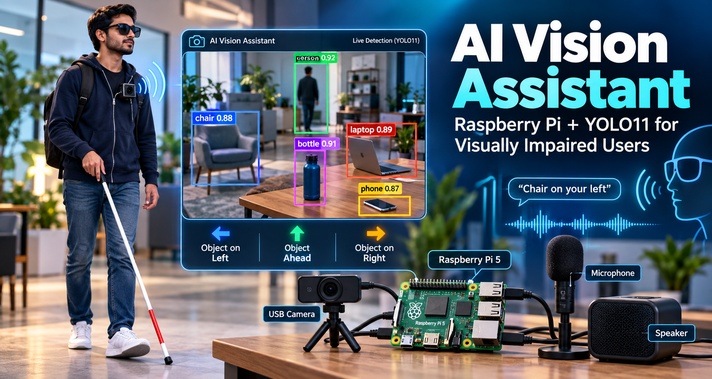
Visually impaired people often face difficulties in understanding what is around them during everyday activities. Identifying nearby objects, knowing whether something is on the left or right, or simply understanding what is directly ahead can be challenging without assistance. Traditional assistive technologies such as white canes are extremely important for mobility, but they do not provide detailed information about objects in the surrounding environment.
This becomes even more difficult in unfamiliar places, crowded rooms, classrooms, offices, or public areas. A person may want to know whether there is a chair nearby, where a table is located, or what objects are directly in front of them. Depending on another person for this information every time can also reduce independence.
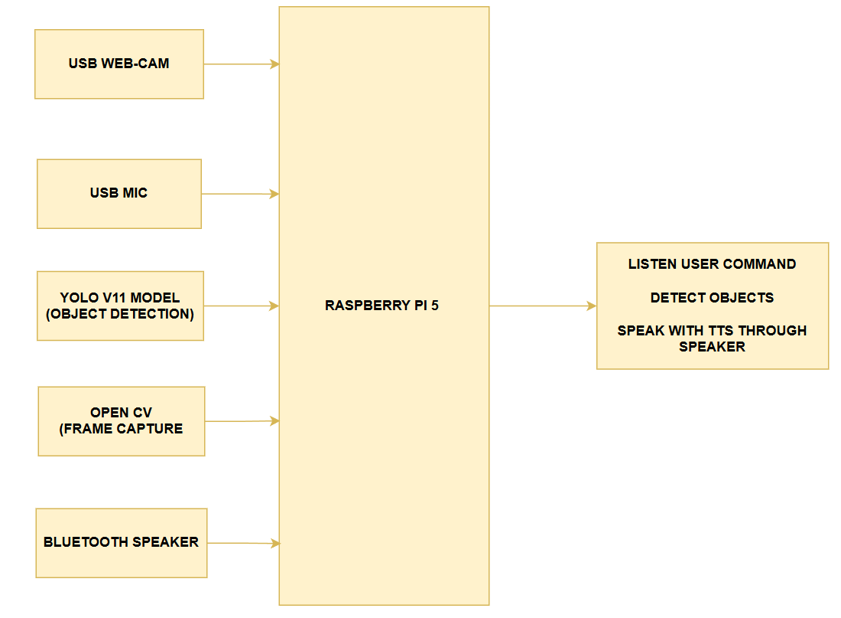
To provide additional environmental awareness, this project uses a Raspberry Pi 5, USB camera, microphone, speaker, and YOLO11 object-detection model. The camera continuously captures the surroundings, while the Raspberry Pi processes the video and identifies common objects such as people, chairs, bottles, laptops, mobile phones, and other everyday items.
The main goal is to build a low-cost, portable, and easy-to-use assistive device that can give visually impaired users useful information about their surroundings in real time. It is designed as an additional assistive tool rather than a replacement for established mobility aids such as a white cane.
This is an educational prototype and should not replace a white cane or other mobility aids.
How the AI Vision Assistant Works
The complete operation can be understood as a simple cycle. The USB camera captures an image of the environment. The Raspberry Pi receives that frame through OpenCV and sends it to the YOLO11 model.
YOLO analyzes the image and returns information such as:
- detected object name,
- bounding-box position,
- confidence level,
- and location inside the camera frame.
At the same time, the microphone listens for voice commands. When the user asks for information, the Raspberry Pi checks the latest detected objects and prepares an appropriate response. That response is converted into speech and played through the speaker. The entire process continues repeatedly while the device is running.
Hardware Required
One advantage of this design is that it does not require a desktop computer or expensive GPU system for normal operation. The complete prototype is built around a Raspberry Pi 5.
| Component | Purpose |
|---|---|
| Raspberry Pi 5 | Main processing and control unit |
| USB Webcam | Captures live images of the surroundings |
| USB Microphone | Receives voice commands |
| Bluetooth Speaker | Provides spoken feedback |
| Raspberry Pi Power Adapter | Provides stable power |
| MicroSD Card | Stores Raspberry Pi OS, Python code and models |
| USB and Power Cables | Connects the hardware |
| Protective Case | Protects the Raspberry Pi |
Connecting the Hardware
It is better to connect and test each component individually rather than assembling everything and debugging all the hardware at once.
Step 1: Prepare the Raspberry Pi 5
Install a suitable Raspberry Pi operating system on the microSD card and boot the Raspberry Pi.
Before installing the application, confirm that:
- the Raspberry Pi boots normally,
- the internet connection works during development,
- USB ports are working,
- audio output is available,
- and the system has sufficient free storage.
A protective case with proper ventilation is recommended because continuous AI inference keeps the processor active for long periods.
Step 2: Connect the USB Camera
Connect the webcam directly to one of the Raspberry Pi USB ports. The camera provides continuous frames that OpenCV passes to the YOLO11 model. A resolution of around 640 × 480 is used in the application, which provides a practical balance between image quality and processing speed. Using unnecessarily high camera resolutions can increase CPU load without providing a proportional improvement in detection performance.
Step 3: Connect the USB Microphone
Connect the microphone to another USB port. The application searches the available microphone devices and can identify common USB audio devices using names such as:
- USB,
- microphone,
- headset,
- webcam,
- Logitech,
- Jabra,
- or Plantronics.
This is useful when several audio devices are connected because relying permanently on one fixed device index may cause problems after restarting the Raspberry Pi.
Step 4: Connect the Speaker
A Bluetooth speaker can be paired with the Raspberry Pi and used for spoken responses. Before running the full AI system, play ordinary system audio through the speaker. If normal audio does not work, there is little value in debugging the Python text-to-speech code first. Always confirm the basic audio path before testing the complete application.
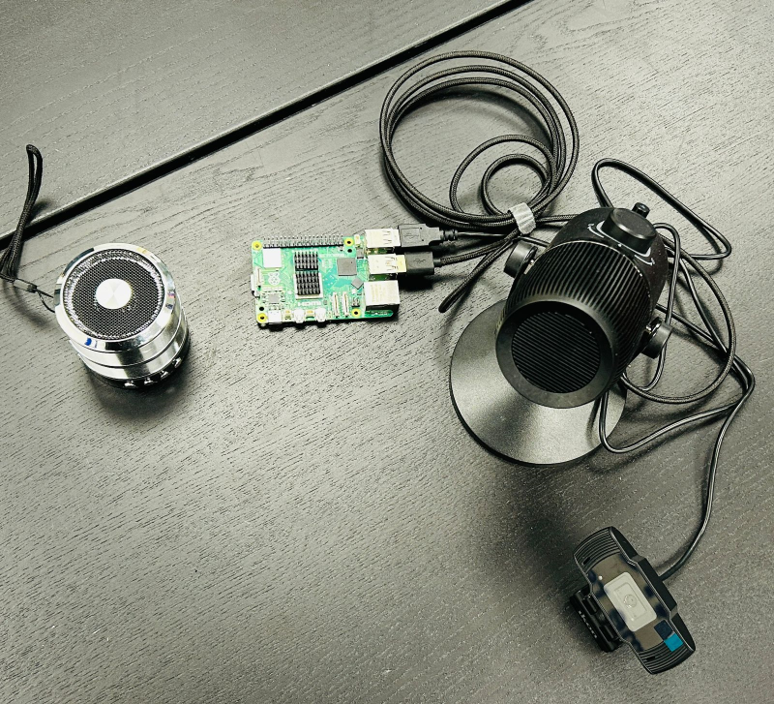
Hardware Prototype
Software Used in the Project
The complete software is written in Python. Different libraries are responsible for different parts of the system.
| Software / Library | Purpose |
|---|---|
| Python | Main programming language |
| OpenCV | Webcam access and frame processing |
| Ultralytics YOLO11 | Real-time object detection |
| NumPy | Image and numerical operations |
| SpeechRecognition | Voice-command processing |
| pyttsx3 | Main text-to-speech engine |
| gTTS | Alternative speech output |
| pygame | Audio playback |
| threading | Runs multiple tasks without blocking |
| queue | Manages speech and command tasks |
The software is divided into separate modules instead of placing everything inside one large processing loop. This makes the program easier to maintain and prevents the camera from freezing while the system is listening or speaking.
YOLO11 Object Detection Setup
The implementation uses the lightweight (yolo11n.pt) model. The nano version is a good option for embedded hardware because Raspberry Pi does not have the same AI processing capability as a high-end GPU computer.
Several important detection settings are used:
Model: yolo11n.pt
Confidence threshold: 0.50
NMS IoU: 0.45
Detection frequency: every 2 frames
Maximum automatic announcement: 5 objects
Automatic announcement delay: 4 seconds
Why a Lightweight YOLO Model Is Important
It may seem better to choose the largest and most accurate YOLO model available. For a Raspberry Pi project, that is not always the best decision.
A heavier model requires more:
- CPU processing,
- memory,
- inference time,
- power,
- and cooling.
An assistive device also needs to respond quickly. A prediction that is slightly more accurate but arrives several seconds late may be less useful than a fast result from a lightweight model. The design therefore focuses on balancing accuracy, cost and response time.
How Object Position Is Calculated
Detecting an object is only part of the task. The system should also provide some indication of where the object is located.
The camera image is divided into three vertical regions:
Left | Center | Right
The horizontal center of each detected bounding box is calculated. If the object’s center falls in the first third of the image, it is considered to be on the left. If it falls in the last third, it is considered to be on the right.
Everything between those regions is treated as the center. This allows the user to ask:
“What is on the left?”
and receive information only about objects in that section.
Voice Commands Supported by the System
The application recognizes several simple commands.
Examples include:
| Voice Command | Action |
|---|---|
| Left | Describes objects on the left |
| Right | Describes objects on the right |
| Front / Center | Describes objects in front |
| Everything | Describes the complete scene |
| How many | Announces the number of detected objects |
| Reset | Clears remembered objects |
| Auto | Returns to automatic detection mode |
Voice Recognition and Ambient Noise Calibration
Background noise is one of the main problems when using speech recognition in real-world environments.
A quiet laboratory behaves very differently from:
- a classroom,
- an office,
- a public hallway,
- a shopping area,
- or an outdoor environment.
To improve recognition, the application performs ambient-noise calibration before it begins listening continuously.
Text-to-Speech Output
After an object or command has been processed, the response needs to be delivered to the user in a clear way. The application uses several speech methods to improve reliability.
The preferred order is:
pyttsx3 → gTTS with pygame → espeak-ng
Using fallback methods helps prevent the complete system from becoming unusable simply because one TTS engine fails.
Preventing Repeated Announcements
A camera may detect the same chair hundreds of times while it remains in the same location.
If the Raspberry Pi said:
“Chair.”
“Chair.”
“Chair.”
every few moments, the system would quickly become irritating and difficult to use. To avoid this, the application stores the names of objects that have already been announced. New objects are spoken first. Several objects can also be grouped together into one sentence.
For example:
“I can see a laptop, a bottle and a chair.”
rather than playing three separate messages. A short cooldown is used between automatic announcements, and the object memory is periodically reset so important objects can eventually be announced again. This small design decision greatly improves the practical usability of the system.
Testing the System Step by Step
A project containing AI, cameras, microphones and speakers should never be tested only after everything has been connected. Testing individual modules first makes troubleshooting much easier.
1. Camera Testing
The first test is simply to check whether the Raspberry Pi can continuously receive video frames.
The camera should:
- open correctly,
- maintain a stable image,
- avoid unnecessary freezing,
- and provide enough detail for object detection.
Once camera capture works correctly, YOLO can be added.
2. Object Detection Testing
Several everyday objects were placed in front of the camera, including:
- laptop,
- bottle,
- chair,
- mobile phone,
- and mouse.
The system should display:
- a bounding box,
- object label,
- and confidence percentage.
Testing should include both single-object and multi-object scenes.
3. Lighting Tests
Object detection was tested under different lighting conditions. Performance was good under normal indoor lighting. Low-light conditions caused some reduction in detection reliability. This is expected because computer vision models depend on visible object features. Dark scenes can remove important details while image noise increases.
4. Voice Recognition Testing
Commands were spoken into the USB microphone in a quiet environment first. Most commands were recognized correctly. The same commands were then tested with additional background noise. Small recognition errors appeared as the surrounding noise increased. This shows why microphone placement and ambient-noise calibration are important.
5. Text-to-Speech Testing
The audio module was tested separately to confirm that spoken responses were understandable.
Typical responses include:
“I can see a laptop.”
“I can see a chair and a bottle.”
“Nothing detected on the left.”
The output needs to be clear enough for the user to understand quickly without repeating the command.
6. Direction Testing
Objects were positioned in different parts of the camera frame.
The user could then request:
- left,
- center,
- right,
- or everything.
The program filters the current detections according to their bounding-box locations before generating the audio response.
7. Continuous Operation Test
The complete application was finally allowed to run continuously.
During this test, it had to:
- capture frames,
- perform detection,
- maintain the latest object list,
- listen for voice commands,
- process commands,
- produce speech,
- and continue scanning.
This is more demanding than testing the individual components separately because several tasks are happening almost simultaneously.
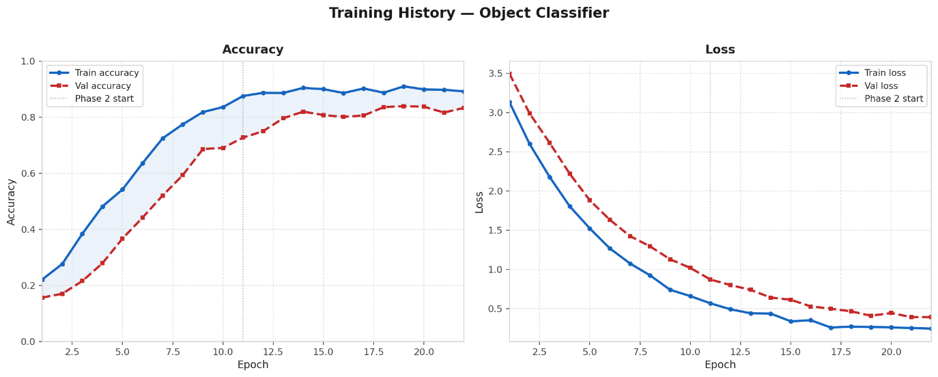
Model Training Results
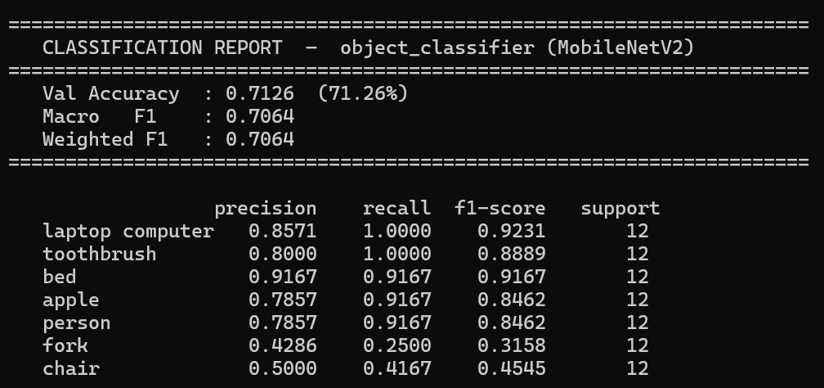
The training curves provide useful information about how the classifier learns over time. At the beginning, both training and validation accuracy are relatively low. As training continues, accuracy improves rapidly.
Training accuracy eventually reaches approximately 0.88–0.90, while the validation curve rises toward approximately 0.80–0.84 during the later epochs. The loss also decreases significantly as training progresses.
Final Classification Performance
The 48-class classification evaluation produced a validation accuracy of:
71.26%
The macro F1 score was:
0.7064
The weighted F1 score was also:
0.7064
Strong Classes
Some of the best-performing classes included:
| Object | F1 Score |
|---|---|
| Laptop computer | 0.923 |
| Bed | 0.917 |
| Toothbrush | 0.889 |
| Apple | 0.846 |
| Person | 0.846 |
| Cat | 0.833 |
More Difficult Classes
Some objects were considerably harder to classify.
| Object | F1 Score |
|---|---|
| Fork | 0.316 |
| Chair | 0.455 |
Real-Time Object Detection Results
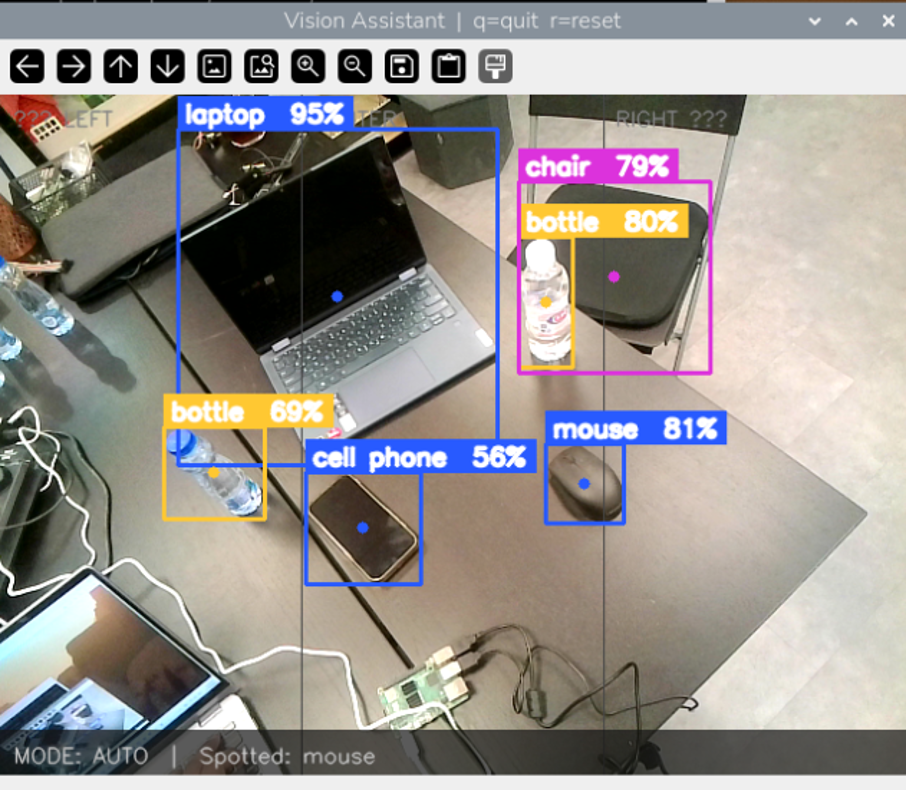
One of the most useful tests was a real scene containing several objects at the same time.
The system successfully detected:
- Laptop — 95%
- Chair — 79%
- Bottle — 80%
- Bottle — 69%
- Cell phone — 56%
- Mouse — 81%
Each object was displayed with its own bounding box and confidence value. The system also divided the screen into left, center and right sections. This confirmed that the same frame could be used both for object identification and approximate directional information.
Problems Faced During Development
No real embedded AI project works perfectly on the first attempt. Several practical issues become visible only after the individual technologies are combined.
1. Raspberry Pi Processing Delay
The Raspberry Pi 5 provides enough power for lightweight AI models but is still much slower than a desktop GPU. Minor delays can therefore occur during real-time inference and response generation.
How to Reduce the Delay
- Use a lightweight YOLO model.
- Keep the camera resolution reasonable.
- Avoid running inference unnecessarily on every frame.
- Do not allow text-to-speech functions to block the main camera loop.
- Using threads and queues is especially useful here.
2. Poor Detection in Low Light
Object detection became less reliable when the lighting was poor. This happens because the camera cannot provide the same amount of visual detail in dark scenes.
Possible Improvements
- Use better room lighting.
- Avoid pointing the camera directly toward extremely bright windows.
- Keep the camera lens clean.
- Use a camera with better low-light capability if the system will operate in darker environments.
3. Background Noise Affects Voice Recognition
Noise from people, fans, traffic or nearby equipment can interfere with voice commands. Recognition accuracy was better in quiet environments and decreased as background noise increased.
Possible Improvements
- Keep the microphone closer to the user.
- Use a directional or noise-reducing microphone.
- Perform ambient-noise calibration.
- Use short and distinctive commands.
- Avoid placing the microphone close to the speaker.
4. Wrong Microphone Device
Linux systems sometimes expose multiple microphones.
For example, there might be:
- a webcam microphone,
- USB microphone,
- headset input,
- HDMI audio,
- Bluetooth input,
- and virtual audio devices.
Hard-coding the wrong audio-device number can cause voice recognition to stop working completely. It is much better to list available microphones and select the correct USB device programmatically.
5. Speaker Connected but No Audio
Bluetooth showing “connected” does not always mean the application is sending audio to that speaker. Test system audio independently first. Then test one TTS engine. Only after those tests succeed should the complete vision application be started. This prevents unnecessary changes to working AI code when the actual problem is audio routing.
6. Too Many Automatic Announcements
Automatic object detection can become annoying when the same objects are continuously repeated. This is why object memory and announcement cooldowns are necessary. The application should speak when useful information changes rather than narrating every single frame.
7. Synchronizing Camera, Voice and Speech
One of the more difficult software problems is keeping several modules operating smoothly together. The camera should keep scanning while:
- voice recognition listens,
- YOLO performs inference,
- commands are processed,
- and the speaker produces audio.
If all tasks are executed sequentially, one slow operation can stop everything else. Threading and queues help separate those tasks and create a more responsive system.
Common Mistakes to Avoid
Avoid the following common mistakes:
Testing Everything at Once
This is one of the easiest ways to make debugging difficult.
Instead, follow this order:
Camera → YOLO → Microphone → Speech Recognition → TTS → Direction Logic → Full Integration
When something stops working, you can immediately identify which module caused the problem.
Choosing a Model That Is Too Large
A larger model may appear more attractive because benchmark accuracy can be higher. However, embedded AI is always a trade-off. The best model is not necessarily the largest one. The best model is the one that produces sufficiently accurate results within an acceptable response time.
Using Very High Camera Resolution
Increasing the camera resolution increases the amount of data YOLO needs to process. For Raspberry Pi applications, extremely high resolutions may decrease frame rate significantly. Use only enough resolution to capture the visual details required by the model.
Ignoring Lighting During Testing
A successful test under perfect laboratory lighting does not mean the system will behave the same everywhere.
Test the device:
- close to windows,
- in darker rooms,
- under artificial lighting,
- with shadows,
- with several objects,
- and with partially hidden objects.
Real-world testing is more valuable than repeatedly testing the same desk setup.
Confusing Detection Confidence With Accuracy
A detection confidence displayed beside one bounding box should never be used as the total accuracy of the project. Always keep per-object confidence and overall evaluation metrics separate.
Ignoring Audio Feedback Design
Assistive technology is not useful simply because the AI detects objects correctly.
The spoken information also needs to be:
- short,
- understandable,
- timely,
- and relevant.
Too much information can be just as problematic as too little information.
Testing Internet Dependency
The object-detection model runs locally once the required software and model are available. However, some speech services can require an internet connection. The normal speech-recognition path uses Google’s speech recognition, while Sphinx can act as an offline fallback.
gTTS can also require internet connectivity. If a completely offline assistive device is required, offline speech recognition and local text-to-speech should be used for the final version. A simple test is to disable Wi-Fi completely and check which features continue working.
How the System Can Be Improved
The current prototype provides a strong foundation, but several improvements could make the system much more useful.
Distance Estimation
Knowing that a chair exists is helpful.
Knowing that:
“A chair is one metre ahead.”
would be much more useful. Future versions could add depth cameras, ultrasonic sensors or other distance-measurement technologies.
Faster AI Hardware
A dedicated AI accelerator or GPU-based embedded platform could provide higher frame rates and allow more complex models to run. This would improve response time, especially when several objects appear simultaneously.
Better Voice Recognition
Noise-resistant speech recognition could make the system more reliable in:
- public spaces,
- busy classrooms,
- shopping centres,
- offices,
- and outdoor environments.
Wearable Design
The prototype could eventually be reduced into a wearable device.
Possible formats include:
- smart glasses,
- chest-mounted cameras,
- shoulder-mounted devices,
- or compact belt-mounted processing units.
This would allow the user’s hands to remain free.
Frequently Asked Questions
Here are answers to some common questions about how the AI assistive system works, its capabilities, and its limitations.
What is an AI assistive device for visually impaired users?
It is a system that uses technologies such as computer vision, cameras, artificial intelligence and audio feedback to provide information about the surrounding environment. This implementation uses a Raspberry Pi, YOLO11, a camera, microphone and speaker.
Why use Raspberry Pi 5?
The Raspberry Pi 5 is compact, relatively affordable and supports common USB and Bluetooth devices. It also provides enough processing power to run lightweight AI models while remaining suitable for a portable prototype.
Which YOLO model is used?
The implementation uses YOLO11 Nano. The nano model is selected because its lower processing requirements are better suited to Raspberry Pi hardware.
Can YOLO run directly on Raspberry Pi?
Yes. Lightweight YOLO models can run on Raspberry Pi. Performance will generally be slower than on a GPU-equipped computer, so model size, image resolution and inference frequency need to be optimized.
Can the device work without internet?
The object-detection portion can work locally once the required model and software are installed. The standard speech-recognition path and gTTS may use online services. A fully offline version can instead use offline speech recognition and local TTS.
What happens if no object is detected?
If no object is detected in the current frame, the system provides an audio message such as “Nothing detected.” A short cooldown period is used to prevent the same message from being repeated continuously while the system continues monitoring the surroundings.
Can the system detect objects on the left and right?
Yes. The camera frame is divided into three regions: left, center, and right. The system uses the center position of each detected object’s bounding box to determine its location, allowing it to answer commands such as “What is on the left?” or “What is on the right?”.
What accuracy was achieved?
The 48-class model evaluation achieved a validation accuracy of 71.26%, with a Macro F1-score of 0.7064 and a Weighted F1-score of 0.7064. These results indicate reasonably balanced performance across the evaluated object classes.
Why can a laptop show 95% if overall accuracy is 71.26%?
These values represent different measurements. The 95% value is the confidence score for one specific laptop detection in a particular frame, while the 71.26% validation accuracy represents the model’s overall performance across the complete validation dataset and multiple object classes.
What affects object detection accuracy?
Object detection accuracy can be affected by several factors, including lighting conditions, camera quality, viewing angle, object size, distance from the camera, partially hidden objects, similarities between object classes, and the quality of the training data. The system generally performs better when objects are clearly visible under normal lighting conditions.
Does background noise affect the system?
Yes. Background noise can reduce the accuracy of voice-command recognition and may cause commands to be misunderstood or missed. Using a good-quality microphone, reducing environmental noise, calibrating for ambient sound, and using short and clear voice commands can improve reliability.
Can this device replace a white cane?
No. The system is designed as an additional assistive tool that can provide information about surrounding objects through AI-based detection and audio feedback. It should not be used as a replacement for a white cane, mobility training, human assistance, or other established navigation and safety aids.
If you are interested in more practical artificial intelligence projects, explore our AI & Machine Learning projects for additional Raspberry Pi and embedded AI applications.
Code
import ctypes, os, sys
_ERROR_HANDLER = ctypes.CFUNCTYPE(
None, ctypes.c_char_p, ctypes.c_int,
ctypes.c_char_p, ctypes.c_int, ctypes.c_char_p
)
def _silent(*_): pass
_c_handler = _ERROR_HANDLER(_silent)
try:
_asound = ctypes.cdll.LoadLibrary("libasound.so.2")
_asound.snd_lib_error_set_handler(_c_handler)
except Exception:
pass
os.environ["JACK_NO_AUDIO_RESERVATION"] = "1"
os.environ["PYGAME_HIDE_SUPPORT_PROMPT"] = "1"
try:
from ultralytics import YOLO
except ImportError:
sys.exit("[ERROR] ultralytics not installed. Run: pip install ultralytics")
try:
import speech_recognition as sr
SR_AVAILABLE = True
except ImportError:
SR_AVAILABLE = False
print("[WARN] speech_recognition not installed – voice commands disabled.")
try:
import pyttsx3
TTS_ENGINE = "pyttsx3"
except ImportError:
TTS_ENGINE = None
print("[WARN] pyttsx3 not installed – trying gTTS fallback.")
try:
from gtts import gTTS
import pygame
TTS_GTTS = True
except ImportError:
TTS_GTTS = False
if TTS_ENGINE is None and not TTS_GTTS:
print("[WARN] No TTS engine found – speech output disabled (text only).")
MODEL_PATH = "yolo11n.pt" # auto-downloaded on first run
CONFIDENCE = 0.50 # slightly lower catches more objects
NMS_IOU = 0.45
DETECT_EVERY_N = 2 # run inference every N frames
AUTO_BATCH_SIZE = 5 # ◄ announce up to 5 objects per sentence
AUTO_SPEAK_CD = 4.0 # seconds between auto-announcements
EMPTY_CD = 6.0 # speak "nothing detected" at most every N s
MEMORY_RESET_S = 45.0 # re-announce all objects after this many s
CMD_SPEAK_CD = 0.5
CAM_INDEX = 0
CAM_W, CAM_H = 640, 480
WINDOW_TITLE = "Vision Assistant | q=quit r=reset"
# ── USB-mic keywords (checked in order, first match wins) ────────────────────
USB_MIC_KEYWORDS = ["usb", "headset", "webcam", "plantronics",
"jabra", "logitech", "microphone"]
# ── COCO class IDs to watch ───────────────────────────────────────────────────
WATCHED_IDS = {
0, # person
14, 15, 16, 17, 18, 19, 20, 21, 22, 23, # animals
24, 25, 26, 27, 28, # accessories
29, 32, # sports
39, 41, 42, 43, 44, 45, # kitchen
46, 47, 48, 49, 50, 51, 52, # food / fruit
56, 57, 58, 59, 60, # furniture
62, 63, 64, 65, 66, 67, # electronics
73, 74, 75, 76, 77, 78, 79, # misc
}
# ── Natural-language descriptions ─────────────────────────────────────────────
NATURAL = {
"backpack": "a backpack", "umbrella": "an umbrella",
"handbag": "a handbag", "tie": "a necktie",
"suitcase": "a suitcase", "frisbee": "a frisbee",
"sports ball": "a ball", "bottle": "a bottle",
"cup": "a cup", "fork": "a fork",
"knife": "a knife", "spoon": "a spoon",
"bowl": "a bowl", "banana": "a banana",
"apple": "an apple", "sandwich": "a sandwich",
"orange": "an orange", "broccoli": "broccoli",
"carrot": "a carrot", "hot dog": "a hot dog",
"pizza": "a pizza", "donut": "a donut",
"cake": "a cake", "chair": "a chair",
"couch": "a sofa", "potted plant": "a plant",
"bed": "a bed", "dining table": "a dining table",
"tv": "a TV or monitor", "laptop": "a laptop computer",
"mouse": "a computer mouse", "remote": "a remote control",
"keyboard": "a keyboard", "cell phone": "a phone",
"book": "a book", "clock": "a clock",
"vase": "a vase", "scissors": "a pair of scissors",
"teddy bear": "a teddy bear", "hair drier": "a hair drier",
"toothbrush": "a toothbrush", "bird": "a bird",
"cat": "a cat", "dog": "a dog",
"horse": "a horse", "sheep": "a sheep",
"cow": "a cow", "elephant": "an elephant",
"bear": "a bear", "zebra": "a zebra",
"giraffe": "a giraffe",
}
# ── Bounding-box colors ───────────────────────────────────────────────────────
def box_color(label: str) -> tuple:
if label == "person":
return (50, 230, 50)
if label in {"dog","cat","bird","horse","bear","elephant","cow","sheep","giraffe","zebra"}:
return (30, 160, 255)
if label in {"laptop","tv","cell phone","keyboard","mouse","remote"}:
return (255, 90, 40)
if label in {"chair","couch","dining table","bed"}:
return (220, 50, 220)
if label == "sports ball":
return (0, 220, 120)
if label in {"backpack","handbag","suitcase","tie"}:
return (255, 210, 0)
if label in {"book","clock","scissors","vase"}:
return (0, 210, 210)
return (50, 200, 255)
class TTSSpeaker:
"""
Speaks text through the system speaker.
Priority: pyttsx3 → gTTS+pygame → espeak-ng fallback.
All output is queued so calls never block the main thread.
"""
def __init__(self):
self._q: queue.Queue = queue.Queue()
self._busy = False
self._engine = None
self._pygame_ready = False
if TTS_ENGINE == "pyttsx3":
try:
self._engine = pyttsx3.init()
self._engine.setProperty("rate", 148)
self._engine.setProperty("volume", 1.0)
voices = self._engine.getProperty("voices")
for v in voices:
if "english" in v.name.lower():
self._engine.setProperty("voice", v.id)
break
print("[TTS] pyttsx3 initialised.")
except Exception as e:
print(f"[TTS] pyttsx3 init error: {e}")
self._engine = None
if self._engine is None and TTS_GTTS:
try:
pygame.mixer.pre_init(44100, -16, 2, 512)
pygame.mixer.init()
self._pygame_ready = True
print("[TTS] gTTS + pygame initialised.")
except Exception as e:
print(f"[TTS] pygame init error: {e}")
t = threading.Thread(target=self._worker, daemon=True)
t.start()
@property
def busy(self) -> bool:
return self._busy or not self._q.empty()
def say(self, text: str):
print(f"[SPEECH] {text}")
self._q.put(text)
def stop(self):
self._q.put(None)
def _worker(self):
while True:
text = self._q.get()
if text is None:
break
self._busy = True
self._speak_now(text)
self._busy = False
def _speak_now(self, text: str):
# 1. pyttsx3 (uses ALSA directly → goes to default speaker)
if self._engine:
try:
self._engine.say(text)
self._engine.runAndWait()
return
except Exception as e:
print(f"[TTS] pyttsx3 error: {e}")
# 2. gTTS → write mp3 → pygame plays through default mixer device
if TTS_GTTS and self._pygame_ready:
try:
import tempfile
tts = gTTS(text=text, lang="en", slow=False)
with tempfile.NamedTemporaryFile(suffix=".mp3", delete=False) as f:
tmp = f.name
tts.save(tmp)
pygame.mixer.music.load(tmp)
pygame.mixer.music.play()
while pygame.mixer.music.get_busy():
time.sleep(0.05)
os.remove(tmp)
return
except Exception as e:
print(f"[TTS] gTTS error: {e}")
# 3. espeak-ng – hard-code to card 0 device 0 (usually the speaker)
try:
os.system(f'espeak-ng -a 180 -s 145 "{text}" 2>/dev/null')
except Exception:
pass
class VoiceListener:
def __init__(self, command_cb):
self._cb = command_cb
self._running = False
def start(self):
if not SR_AVAILABLE:
print("[MIC] SpeechRecognition unavailable – voice commands disabled.")
return
self._running = True
threading.Thread(target=self._loop, daemon=True).start()
def _pick_mic(self) -> "sr.Microphone":
"""Return the first USB-keyword mic, falling back to system default."""
names = sr.Microphone.list_microphone_names()
print("[MIC] Available microphones:")
for i, n in enumerate(names):
print(f" [{i}] {n}")
for kw in USB_MIC_KEYWORDS:
for idx, name in enumerate(names):
if kw in name.lower():
print(f"[MIC] Selected USB mic: [{idx}] {name}")
return sr.Microphone(device_index=idx)
print("[MIC] No USB mic found – using system default.")
return sr.Microphone()
def _loop(self):
r = sr.Recognizer()
r.energy_threshold = 300
r.dynamic_energy_threshold = True
mic = self._pick_mic()
with mic as src:
print("[MIC] Calibrating ambient noise (2 s) …")
r.adjust_for_ambient_noise(src, duration=2)
print("[MIC] Ready – listening for commands.")
while self._running:
try:
with mic as src:
audio = r.listen(src, timeout=4, phrase_time_limit=7)
try:
text = r.recognize_google(audio).lower()
print(f"[MIC] Heard: '{text}'")
self._cb(text)
except sr.UnknownValueError:
pass
except sr.RequestError:
# Offline fallback (sphinx)
try:
text = r.recognize_sphinx(audio).lower()
print(f"[MIC-sphinx] Heard: '{text}'")
self._cb(text)
except Exception:
pass
except sr.WaitTimeoutError:
pass
except Exception as e:
print(f"[MIC] Error: {e}")
time.sleep(1)
def describe_object(label: str, box: tuple, frame_shape: tuple) -> str:
x1, y1, x2, y2 = box
if label == "person":
ratio = (y2 - y1) / max(x2 - x1, 1)
return "a person standing" if ratio > 1.75 else ("a person sitting" if ratio > 1.1 else "a person")
if label == "sports ball":
area = (x2 - x1) * (y2 - y1)
return "a large ball" if area > 15000 else ("a ball" if area > 5000 else "a small ball")
return NATURAL.get(label, f"a {label}")
def box_area(box: tuple) -> int:
return (box[2] - box[0]) * (box[3] - box[1])
def center_x(box: tuple) -> float:
return (box[0] + box[2]) / 2.0
def region_of(cx: float, fw: int) -> str:
return "left" if cx < fw / 3 else ("right" if cx > 2 * fw / 3 else "center")
def detections_in_region(dets: list, region: str, fw: int) -> list:
return dets if region == "all" else [d for d in dets if region_of(center_x(d["box"]), fw) == region]
def sort_by_proximity(dets: list) -> list:
return sorted(dets, key=lambda d: -box_area(d["box"]))
def items_to_sentence(items: list) -> str:
if not items: return ""
if len(items) == 1: return items[0]
return ", ".join(items[:-1]) + " and " + items[-1]
FONT = cv2.FONT_HERSHEY_SIMPLEX
FONT_SCALE = 0.58
THICKNESS = 2
def draw_frame(frame: np.ndarray, dets: list, mode: str, status: str) -> np.ndarray:
h, w = frame.shape[:2]
for x in (w // 3, 2 * w // 3):
cv2.line(frame, (x, 0), (x, h), (70, 70, 70), 1)
for label, xpos in (("◄ LEFT", 10), ("CENTER", w // 3 + 8), ("RIGHT ►", 2 * w // 3 + 8)):
cv2.putText(frame, label, (xpos, 22), FONT, 0.5, (130, 130, 130), 1, cv2.LINE_AA)
for d in dets:
x1, y1, x2, y2 = d["box"]
color = box_color(d["label"])
cv2.rectangle(frame, (x1, y1), (x2, y2), color, 2)
tag = f"{d['label']} {d['conf']:.0%}"
(tw, th), _ = cv2.getTextSize(tag, FONT, FONT_SCALE, THICKNESS)
cv2.rectangle(frame, (x1, y1 - th - 10), (x1 + tw + 10, y1), color, cv2.FILLED)
cv2.putText(frame, tag, (x1 + 5, y1 - 5), FONT, FONT_SCALE, (255, 255, 255), THICKNESS, cv2.LINE_AA)
cv2.circle(frame, (int((x1+x2)/2), int((y1+y2)/2)), 4, color, cv2.FILLED)
bar_h = 32
overlay = frame.copy()
cv2.rectangle(overlay, (0, h - bar_h), (w, h), (20, 20, 20), cv2.FILLED)
cv2.addWeighted(overlay, 0.7, frame, 0.3, 0, frame)
cv2.putText(frame, f"MODE: {mode.upper()} | {status}",
(10, h - 9), FONT, 0.50, (200, 200, 200), 1, cv2.LINE_AA)
return frame
class VisionAssistant:
def __init__(self):
print("[INIT] Loading YOLOv11 nano model …")
self.model = YOLO(MODEL_PATH)
self.model.fuse()
print(f"[INIT] Model ready ({len(self.model.names)} classes)")
self.tts = TTSSpeaker()
self.listener = VoiceListener(self._on_command)
self._lock = threading.Lock()
self._current_dets: list = []
self._frame_w = CAM_W
self._announced = set() # labels spoken this cycle
self._last_speak_t = 0.0
self._last_empty_t = 0.0 # last time we said "nothing detected"
self._last_reset_t = time.time()
self._mode = "auto"
self._status = "Scanning …"
self._cmd_q: queue.Queue = queue.Queue()
self._frame_count = 0
# ── Voice command dispatch ──────────────────────────────────────────────
def _on_command(self, text: str):
self._cmd_q.put(text)
def _process_command(self, text: str):
if any(w in text for w in ("left", "on the left", "left side")):
self._mode = "left"; self._describe_region("left")
elif any(w in text for w in ("right", "on the right", "right side")):
self._mode = "right"; self._describe_region("right")
elif any(w in text for w in ("front", "center", "see now", "you see",
"what do you see", "what's there", "ahead")):
self._mode = "center"; self._describe_region("center")
elif any(w in text for w in ("everything", "all around", "whole room",
"describe all", "what's around")):
self._mode = "all"; self._describe_region("all")
elif any(w in text for w in ("stop", "quiet", "silence", "auto")):
self._mode = "auto"; self._announced.clear()
self._status = "Auto scan …"
elif any(w in text for w in ("reset", "forget", "again", "clear")):
self._announced.clear()
self._status = "Memory cleared."
self.tts.say("Memory cleared. Starting fresh.")
elif any(w in text for w in ("how many", "count")):
with self._lock:
n = len(self._current_dets)
self.tts.say(f"I can see {n} object{'s' if n != 1 else ''}.")
else:
print(f"[CMD] Unrecognised: '{text}'")
# ── Describe a specific region on demand ───────────────────────────────
def _describe_region(self, region: str):
with self._lock:
dets = list(self._current_dets)
fw = self._frame_w
relevant = sort_by_proximity(detections_in_region(dets, region, fw))
if not relevant:
side = region if region != "all" else "the scene"
self.tts.say(f"Nothing detected in {side}.")
self._status = f"Nothing on {region}"
return
seen, phrases = set(), []
for d in relevant:
if d["label"] in seen:
continue
seen.add(d["label"])
desc = describe_object(d["label"], d["box"], (CAM_H, fw))
if desc:
phrases.append(desc)
self._status = f"Describing {region} …"
self.tts.say(f"I can see {items_to_sentence(phrases)}.")
# ── Auto-announce: up to 5 new objects; speak "nothing" if empty ───────
def _maybe_auto_announce(self):
if self._mode != "auto":
return
if self.tts.busy:
return
now = time.time()
# Periodic full memory reset → objects will be re-announced
if now - self._last_reset_t > MEMORY_RESET_S:
self._announced.clear()
self._last_reset_t = now
print("[AUTO] Memory reset – will re-announce all objects.")
with self._lock:
dets = list(self._current_dets)
fw = self._frame_w
# ── Scene is EMPTY ──────────────────────────────────────────────────
if not dets:
if now - self._last_empty_t >= EMPTY_CD:
self.tts.say("Nothing detected.")
self._last_empty_t = now
self._status = "Nothing detected."
return
# ── Scene has objects ───────────────────────────────────────────────
if now - self._last_speak_t < AUTO_SPEAK_CD:
return
ordered = sort_by_proximity(dets)
# Collect up to AUTO_BATCH_SIZE *new* objects
new_phrases, new_labels = [], []
for d in ordered:
if len(new_phrases) >= AUTO_BATCH_SIZE:
break
label = d["label"]
if label in self._announced:
continue
desc = describe_object(label, d["box"], (CAM_H, fw))
if not desc:
continue
new_phrases.append(desc)
new_labels.append(label)
# Nothing new – but don't go silent: re-describe the top objects
if not new_phrases:
# Cooldown: don't repeat too fast
if now - self._last_speak_t < AUTO_SPEAK_CD * 2:
return
for d in ordered[:AUTO_BATCH_SIZE]:
desc = describe_object(d["label"], d["box"], (CAM_H, fw))
if desc and desc not in new_phrases:
new_phrases.append(desc)
if not new_phrases:
return
for lbl in new_labels:
self._announced.add(lbl)
sentence = items_to_sentence(new_phrases)
self.tts.say(f"I can see {sentence}.")
self._last_speak_t = now
self._status = f"Spotted: {', '.join(new_labels) or 'objects'}"
def _detect(self, frame: np.ndarray) -> list:
results = self.model.predict(
frame,
conf=CONFIDENCE,
iou=NMS_IOU,
verbose=False,
stream=False,
)[0]
dets = []
if results.boxes is None:
return dets
for box in results.boxes:
cls_id = int(box.cls[0])
if cls_id not in WATCHED_IDS:
continue
conf = float(box.conf[0])
label = self.model.names[cls_id]
x1, y1, x2, y2 = map(int, box.xyxy[0])
dets.append({"label": label, "conf": conf, "box": (x1, y1, x2, y2)})
return dets
# ── MAIN LOOP ──────────────────────────────────────────────────────────
def run(self):
cap = cv2.VideoCapture(CAM_INDEX)
if not cap.isOpened():
sys.exit("[ERROR] Cannot open webcam – check CAM_INDEX in config.")
cap.set(cv2.CAP_PROP_FRAME_WIDTH, CAM_W)
cap.set(cv2.CAP_PROP_FRAME_HEIGHT, CAM_H)
cap.set(cv2.CAP_PROP_FPS, 30)
cap.set(cv2.CAP_PROP_BUFFERSIZE, 1)
self.listener.start()
self.tts.say("Vision assistant ready. I will describe what I see.")
print("[RUN] q=quit r=reset")
print("[RUN] Voice: left / right / front / everything / reset / how many / auto")
try:
while True:
ret, frame = cap.read()
if not ret:
time.sleep(0.05)
continue
self._frame_count += 1
if self._frame_count % DETECT_EVERY_N == 0:
dets = self._detect(frame)
with self._lock:
self._current_dets = dets
self._frame_w = frame.shape[1]
self._maybe_auto_announce()
while not self._cmd_q.empty():
self._process_command(self._cmd_q.get())
with self._lock:
draw_dets = list(self._current_dets)
display = draw_frame(frame.copy(), draw_dets, self._mode, self._status)
cv2.imshow(WINDOW_TITLE, display)
key = cv2.waitKey(1) & 0xFF
if key == ord("q"):
break
elif key == ord("r"):
self._announced.clear()
self._status = "Memory reset."
print("[KEY] Object memory cleared.")
except KeyboardInterrupt:
print("\n[EXIT] Interrupted.")
finally:
cap.release()
cv2.destroyAllWindows()
self.tts.stop()
print("[EXIT] Shutdown complete.")
if __name__ == "__main__":
assistant = VisionAssistant()
assistant.run()
